
KdNet Remote Desktop
This method is intended for early-stage debugging. You can connect to the target device's Windows remote desktop via KdNet to test touch, USB, etc. References and tutorials adapted from the WOA Project.
Preparation
- A device that has just had Windows deployed and has not been booted yet.
- The ESP partition's ESP FLAG must have been set correctly before deploying Windows.
- The phone is currently in Mass Storage Mode and connected to the PC.
- You have read the KDNET setup guide and performed the full procedure at least once.
- Download
unattend.xmlfrom unattend.xml.
Note
The unattended file only takes effect on the first boot. Make sure you have just finished deploying the system and installed drivers.
- For installing Windows see Windows installation summary.
- For driver installation see Install Drivers.
Configure Unattended Setup
- Open File Explorer and locate the system drive of the phone.
- Enter
\Windows\Panther\. - Copy the
unattend.xmlyou downloaded into this folder.- Optional: you can modify the
LocalUserinunattend.xmlto change the created username.
- Optional: you can modify the
- Eject the disk and reboot the phone, then boot into UEFI.
- Wait for the system to boot. The normal flow is:
- Spinning wheel -> Getting devices ready -> Ready -> Automatic reboot
- After the automatic reboot, boot UEFI again. The normal flow is:
- Spinning wheel -> OOBE -> Enter desktop as user
LocalUser
- Spinning wheel -> OOBE -> Enter desktop as user
- Note both steps are automated; you only need to boot UEFI twice.
- If on first boot you see a "Windows could not complete the installation... click OK to restart" message, check the ESP FLAG and reinstall Windows if necessary.
Windbg Connection
- Follow the KDNET setup steps in SetupKDNET to configure KDNET and connect.
- If the debugger auto-breaks, click
Goin the top-left of Windbg or typegand press Enter in the command line.
- If the debugger auto-breaks, click
- After the phone boots into Windows, click the
Breakbutton in the top-left of Windbg. In the command line area enter!process 0 1and press Enter, then wait for the output to finish. - Pick any process, click the blue data link after
Peb, Windbg will execute the command and dump a lot of data.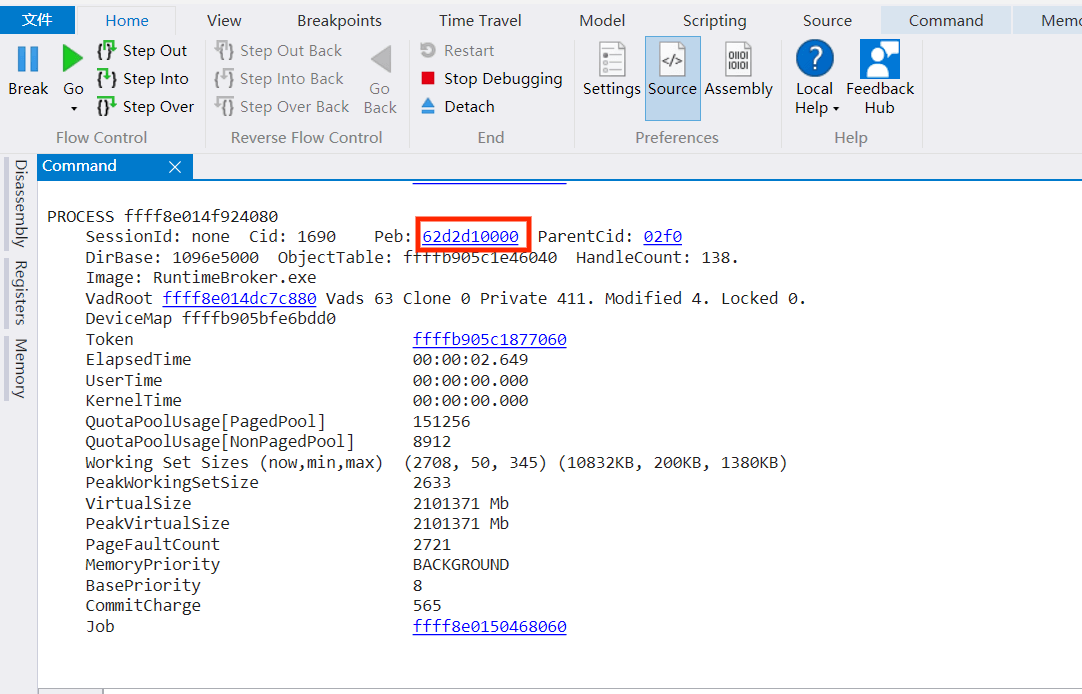
- In the output find
USERDOMAINand copy the value after it. It is usually likePHONE-XXXXXorDESKTOP-XXXX.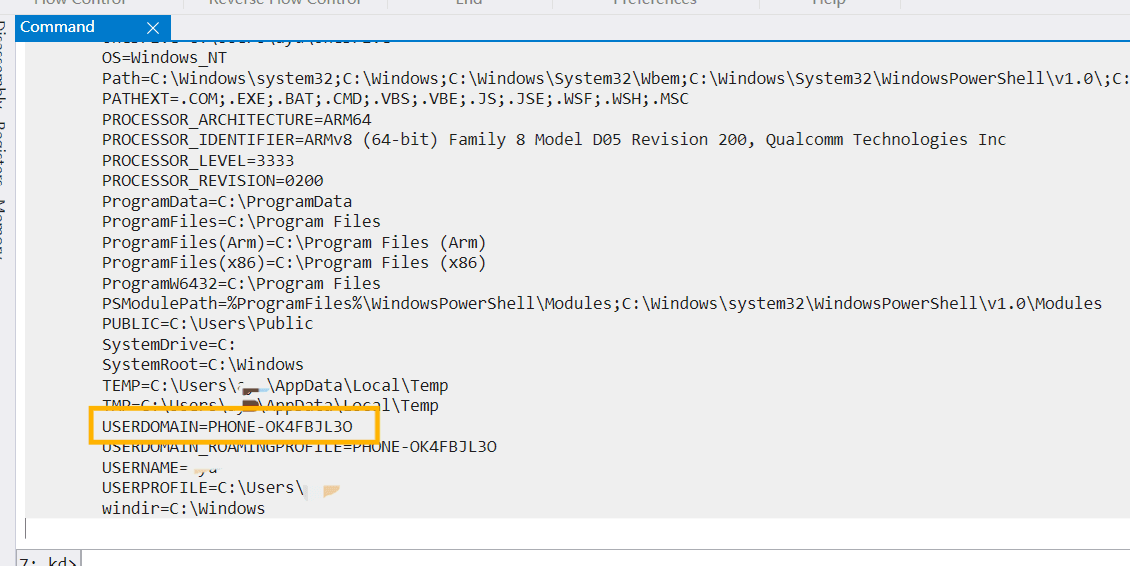
TIP
If the selected Peb output does not contain USERDOMAIN, try another process's Peb.
RDP Connection
- Open the built-in Windows Remote Desktop tool (
Remote Desktop Connection). You can search it in the Start menu or pressWin+Rand runmstsc. - Enter the
USERDOMAINyou copied in theComputerfield and click Connect.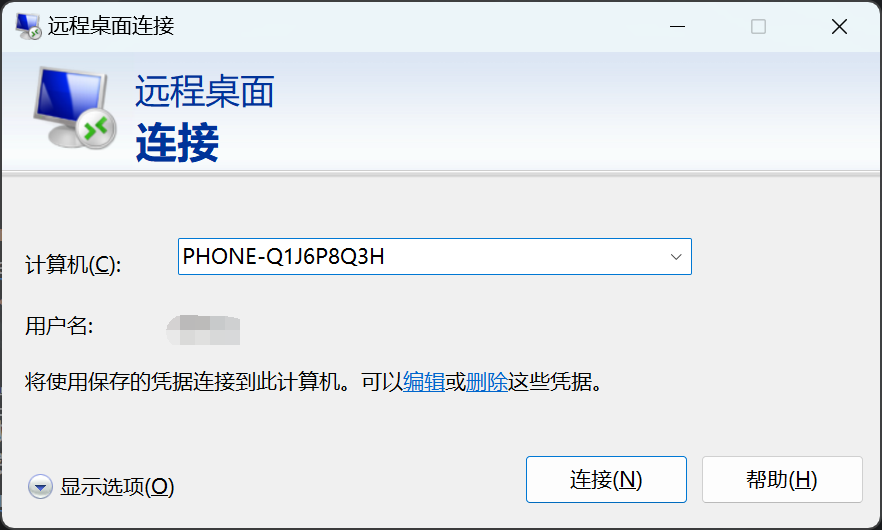
- The username is
LocalUser, or whatever you set inunattend.xml. - There is no password; enter the username and connect. If you are warned about a certificate, ignore/accept it.
- If Remote Desktop connects successfully, the setup is complete — start your debugging session!
